Mainchain - Clearing Your Browser Cache
- For Apple Safari Users
-
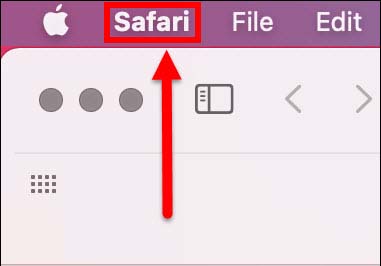
1. Click on the menu item [Safari] which can be found next to the Apple logo.
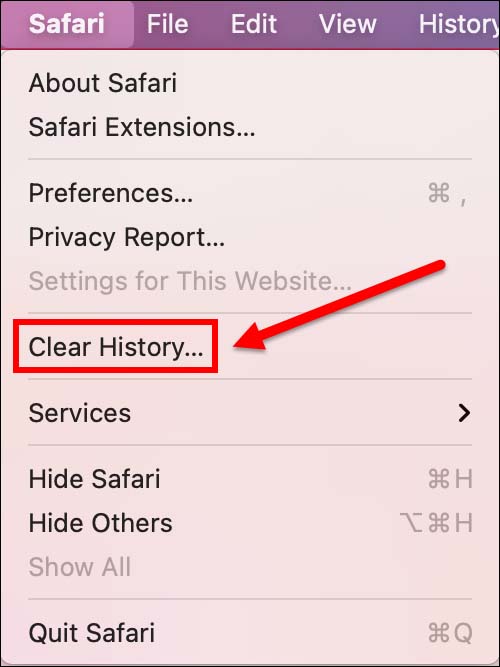
2. Click [Clear History...].
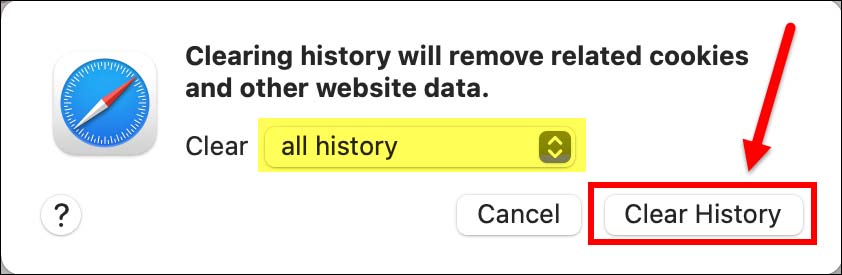
3. Ensure you have set to all history. Then click [Clear History].
- For Google Chrome Users
-
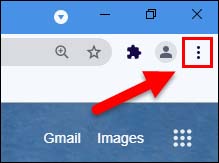
1. Click on the button with the three vertical dots.
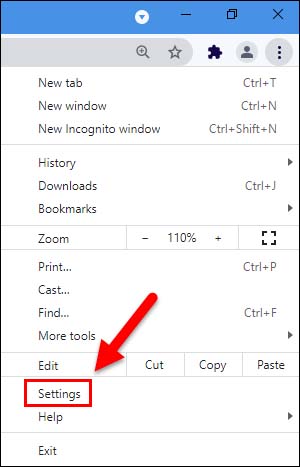
2. Click [Settings...].
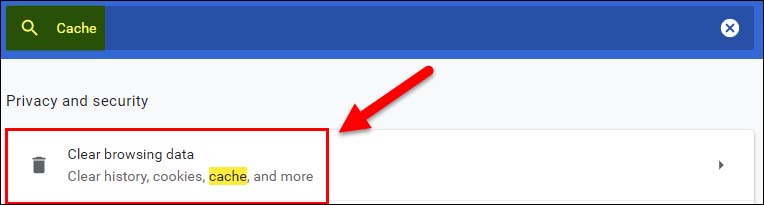
3. Type in Cache into the search bar and click [Clear browsing data].
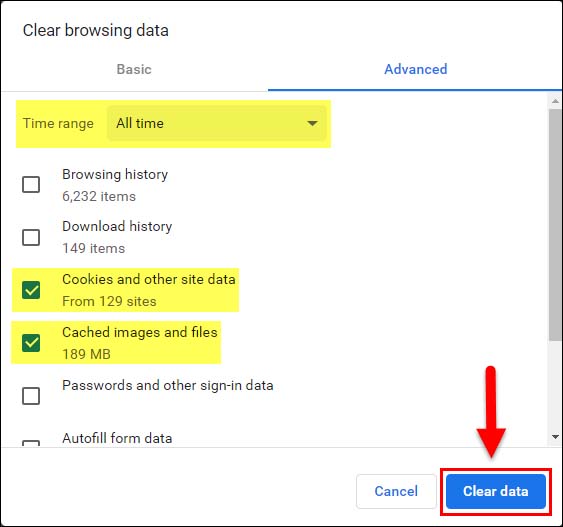
4. Ensure you have set the time range to All time. Tick the followiing boxes:
- Cookies and other site data
- Cached images and files
then click [Clear data].
- For Microsoft Edge Users
-
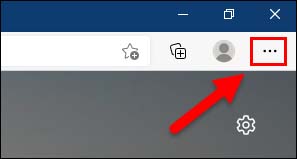
1. Click on the button with the three horizontal dots.
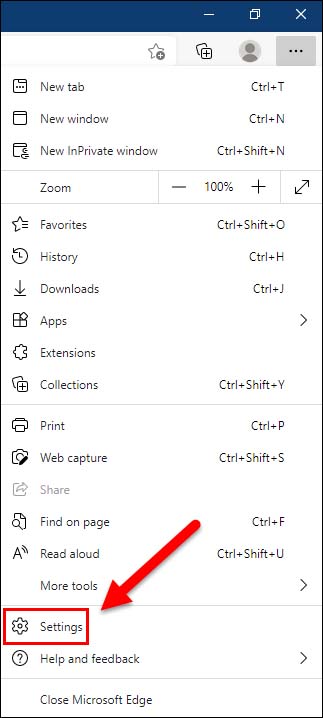
2. Click [Settings].
3. To your left, type in Cache into the search bar. Then click [Choose what to clear].

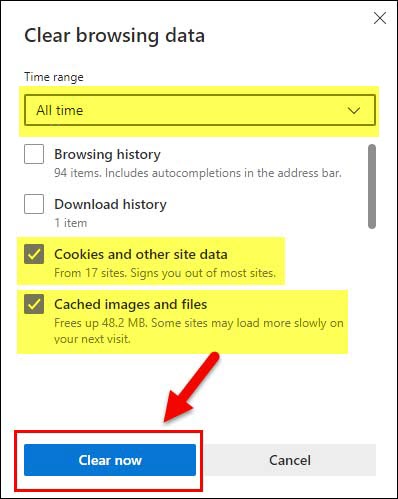
4. Ensure you set the time range to All time. Tick the following boxes,
- Cookies and other site data
- Cached images and files
then click [Clear now].
- For Mozilla Firefox Users
-
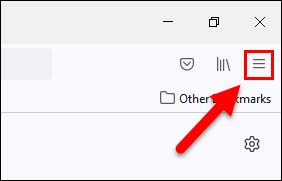
1. Click on the button with the three horizontal lines.
2. Click [Settings].
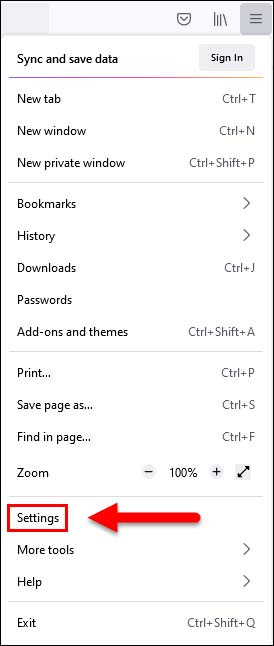
3. Type Cache into the search bar. Then click [Clear Data...].
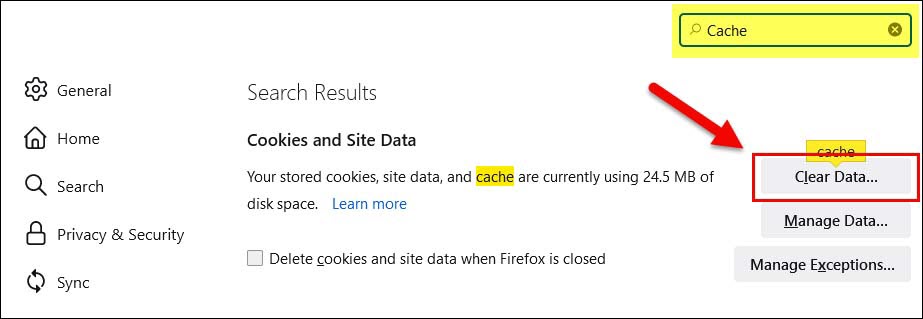
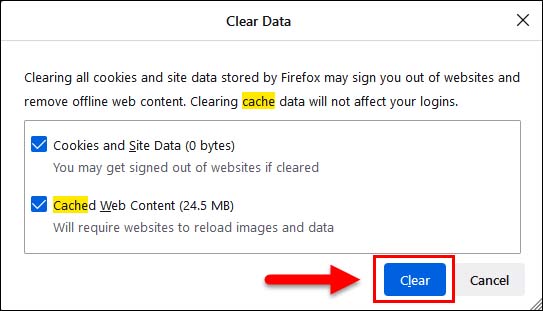
4. Ensure the following boxes are ticked.
- Cookies and Site Data
- Cached Web Content
then click [Clear].